How do you fix leaning buildings in iPhone photos?
If you've ever taken a photo of a tall building with your iPhone and noticed the walls look like they're falling backward, you're dealing with perspective distortion — also called the keystone effect or converging verticals. This is one of the most common problems in iPhone architectural photography, real estate photography, and cityscape shots. Whether you're a casual shooter or a professional photographer trying to straighten vertical lines, this guide will show you exactly how to fix leaning buildings on iPhone using the built-in Photos app, Snapseed, Lightroom Mobile, and the one-tap AutoAlign app.
Buildings lean in iPhone photos because the camera was tilted upward, and the wide-angle lens turns vertical lines into converging diagonals. To fix it, open the photo in AutoAlign — it automatically detects the vertical lines and straightens them instantly, with HDR preserved. No buttons to press, no sliders to adjust.
Why do buildings lean in iPhone photos?
This effect has a name: the keystone effect, also called converging verticals or perspective distortion. It happens because of two things working together:
- You tilt the phone upward to fit a tall building in the frame.
- The wide-angle lens compresses the scene — the further a vertical line is from the optical center, the more it appears to angle inward.
The result is a building that looks like it's falling backward, even though it stands perfectly straight in real life. The taller the building and the closer you are, the more dramatic the lean. This is especially problematic in real estate photography, architectural photography, and cityscape shots where straight vertical lines are essential for a professional look.
The keystone effect is not a flaw in your iPhone camera — it's a natural result of geometry. When you point a wide-angle lens upward, parallel vertical lines appear to converge toward the top. Professional photographers use tilt-shift lenses or perspective correction software to fix this. On iPhone, you have several options ranging from manual adjustments to automatic one-tap solutions.
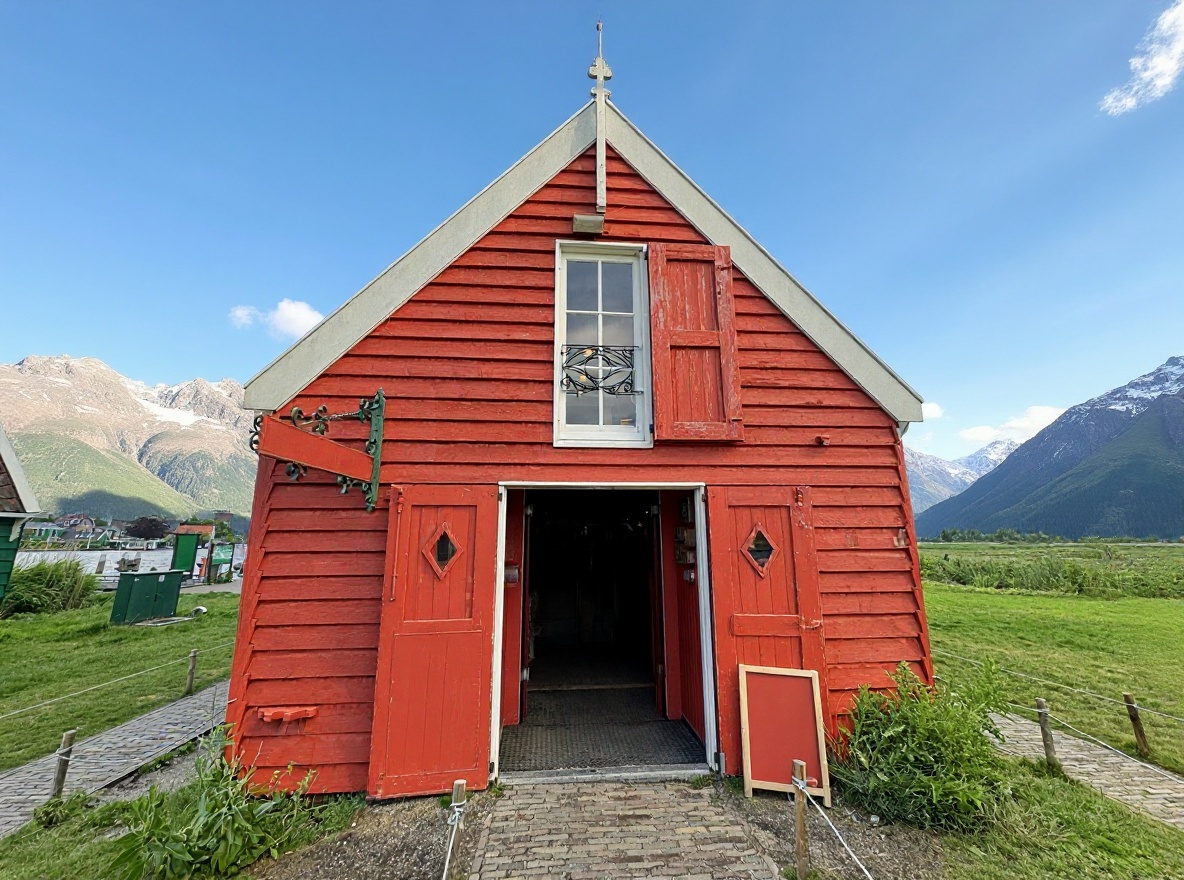
The three ways to fix leaning buildings on iPhone
You have three realistic options in 2026. They look similar on paper, but the workflow differences are bigger than the table suggests:
| Capability | AutoAlign | iPhone Photos — Perspective slider | Snapseed / Lightroom Mobile |
|---|---|---|---|
| Time to fix one photo | ~2 seconds (one tap) | ~30 seconds | 1–2 minutes |
| Auto-detects perspective distortion | Yes | No — fully manual | Yes |
| Handles asymmetric distortion | Yes — estimates separate correction parameters per side, auto-corrects | No — symmetric only (tilts both sides equally) | Yes — but requires manual adjustment per side |
| Handles missing edge pixels | Smart fill, or auto-cropped to clean rectangle in one step | Auto-crops, but you lose framing you may want to keep | Snapseed's basic outpainting often looks artificial (smearing, repeated patterns); cropping is a separate step |
| Preserves HDR gain map | Yes | Yes | Yes |
| Works as a Photos extension | Yes — edit in place, no import/export | Built into Photos | No — requires importing the photo into the app, then exporting back |
| Tool is easy to find | Single button, only function in the app | Buried under Edit → Crop → perspective icon | Buried under multiple nested menus (Tools → Perspective → Free, then manual adjustment). Hard to find and a burden for repetitive batch work. |
| Pricing | Free to try. Pick what fits you: $0.99/week for a quick batch, $4.99/year to save more, or a one-time $9.99 purchase to own it forever. | Free (built into iOS) | Snapseed: Free, no ads. Lightroom: Free app, but geometry tools & full-res export require ~$11.99/mo subscription. |
The big practical differences:
- iPhone Photos slider is symmetric. The Vertical slider tilts both sides of the frame by the same amount. If a building leans more to the left than the right (which is almost always the case in handheld shots), you can't fix it cleanly without also distorting the rest of the scene.
- Snapseed and Lightroom are full editors, not single-purpose tools. They auto-detect distortion but then require manual corner tap-and-drag. Snapseed is completely free with no ads, but you must import each photo into the app, navigate through nested menus (Tools → Perspective → Free), manually drag corner handles, then export a separate copy back to Photos — no in-place editing like in the Photos app. Lightroom Mobile is free to install, but its geometry tools and full-resolution export are behind a Premium subscription (~$11.99/month). Free users are capped at 2048px exports and get watermarks.
- AutoAlign is one tap from the Photos extension. No import, no menus, no sliders. It detects the vertical lines, computes the asymmetric perspective transform, fills the edges (or auto-crops), and preserves the HDR gain map — all in one step. Start free, then choose the plan that fits your workflow: process a batch of photos for just $0.99/week and cancel anytime, save more with $4.99/year, or own it forever with a one-time $9.99 purchase.
Method 1 — Fix it in one tap with AutoAlign
AutoAlign is a dedicated perspective correction app built specifically to fix leaning buildings and straighten vertical lines in iPhone photos. It uses computer vision to detect vertical lines in the building and applies the exact perspective transform needed to straighten them, in a single tap. No sliders, no guessing, no manual adjustments.
Unlike general photo editors that bury the perspective tool under layers of menus, AutoAlign does one thing and does it well: automatic keystone correction for iPhone architectural photography.
Step 1 — Open the photo in AutoAlign
Launch the app and pick the leaning-building photo from your library. AutoAlign analyzes the image and highlights the vertical structures it detected.
Step 2 — Tap the auto-correct button
AutoAlign computes the perspective transform that makes those vertical lines truly vertical, and applies it instantly.
Step 3 — Choose your output mode
Two choices appear:
- Wide-angle correction — keeps the full frame; missing edge pixels are filled in by smoothly extending the edge colors.
- Cropped correction — keeps only the original pixels and trims to a clean rectangle. Best when you don't want any synthesized content.
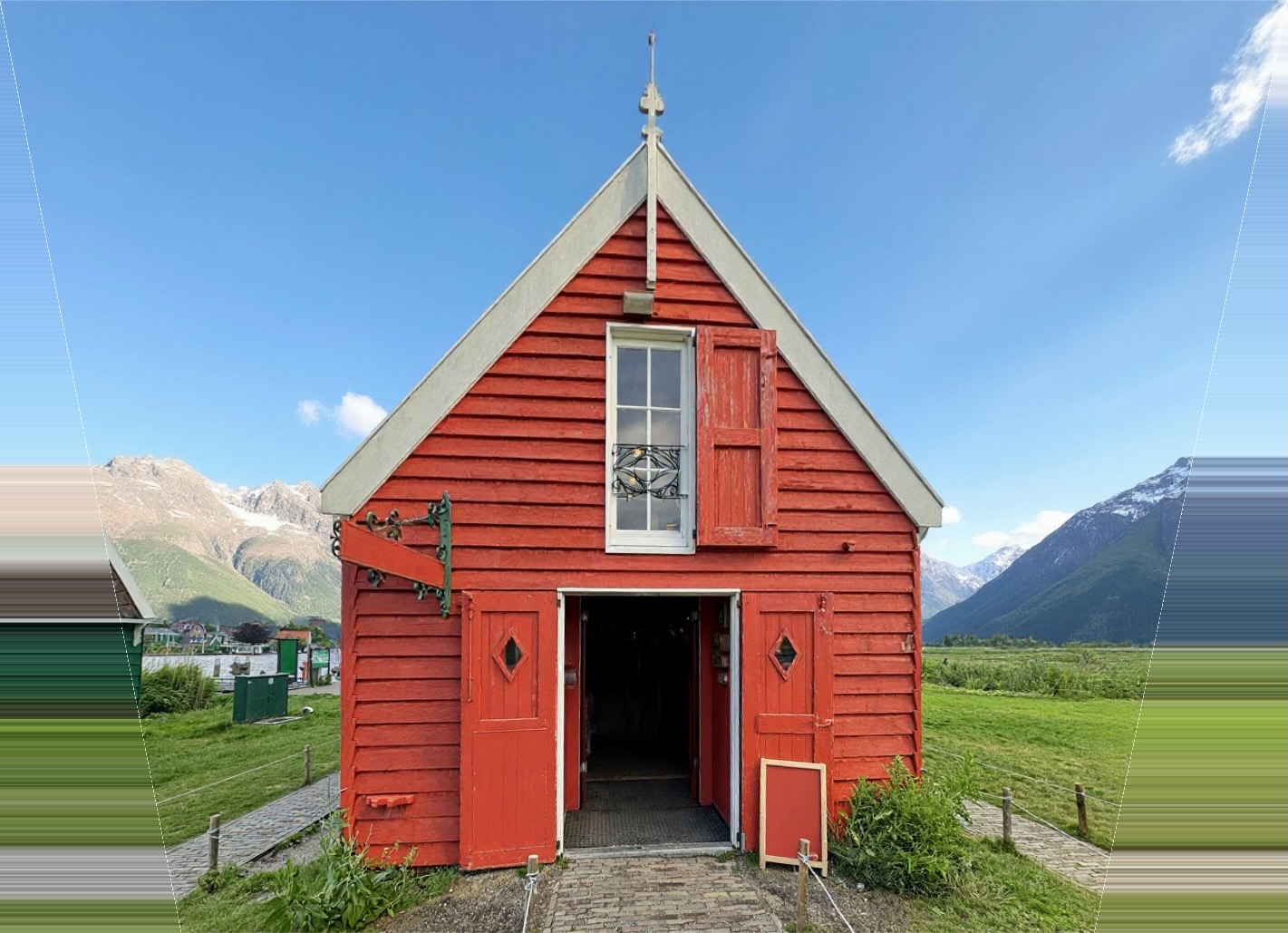
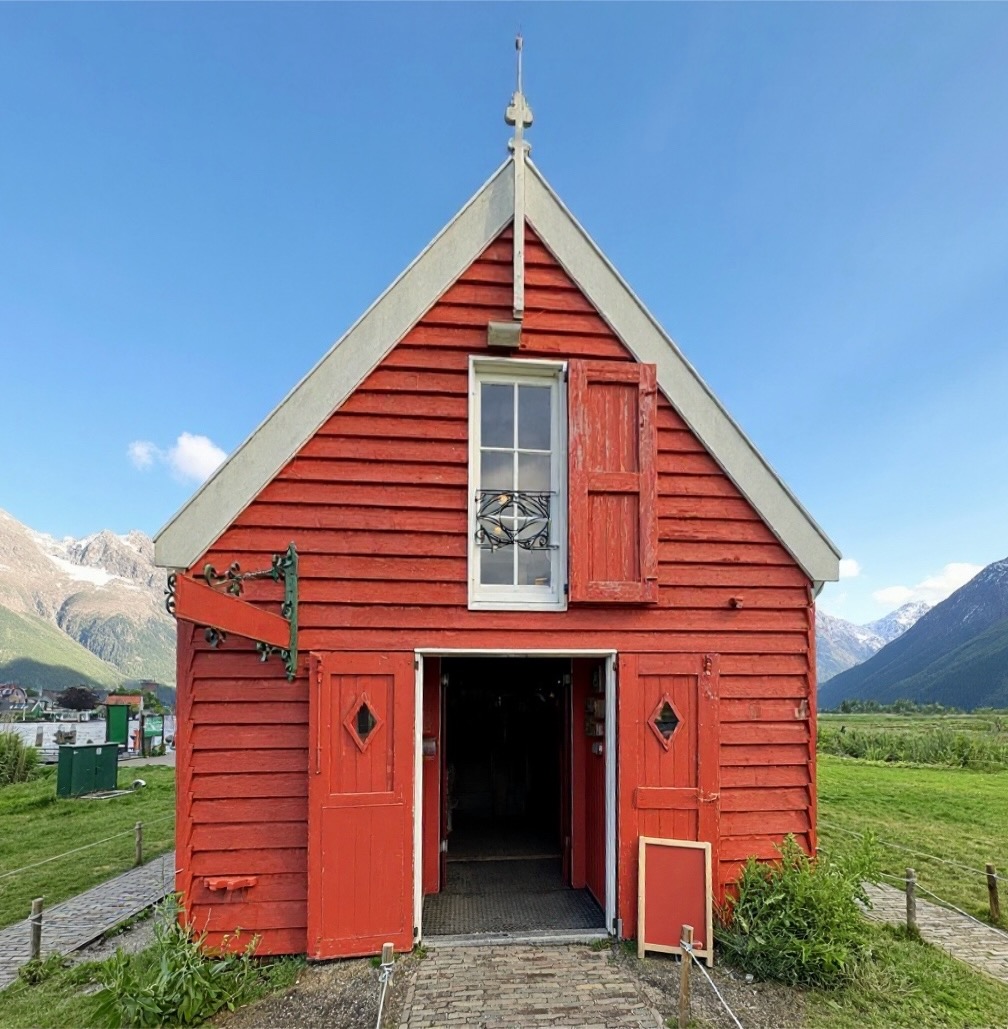
Step 4 — Save back to Photos with HDR intact
Save the corrected image. The original stays untouched in your library; the edit is reversible. AutoAlign preserves the HDR gain map — the metadata that makes Apple Photos display the bright highlights at full dynamic range — so the corrected photo looks just as vivid as the original.
Method 2 — The iPhone Photos app perspective slider
iOS 17 and later include a manual perspective correction tool inside the native Photos app. It works in a pinch for quick fixes, but it's limited and not automatic. This is the most accessible option since it's built-in, but it lacks the precision and automation of dedicated perspective correction apps.
- Open the photo in Photos and tap Edit.
- Tap the Crop icon at the bottom.
- Tap the perspective adjustment button (looks like a tilted rectangle).
- Drag the Vertical slider until the building lines look straight. You may also need Horizontal.
- Tap Done.
The downsides:
- There's no auto-detection — you eyeball the result.
- The Vertical slider is symmetric: it tilts both sides of the frame by the same amount. If your building leans more on one side than the other (typical of handheld shots), the slider can't fix that without distorting the rest of the scene.
Method 3 — Snapseed or Lightroom Mobile
Both apps include perspective tools, but they're full editors with complex workflows, not single-purpose fixers. Expect noticeably more friction:
- Import-export workflow. Neither runs as a Photos extension. You must open the app, import the photo from your library, apply the fix, then export a separate copy back to Photos. The original and corrected versions live in separate places.
- Buried under nested menus. In Snapseed: open the image, tap Tools, scroll to Perspective, choose the Free mode, then drag corner handles manually. For just one photo it's tedious; for a batch of architectural shots it's a real burden.
- Steep learning curve. Snapseed's interface packs dozens of tools into a single screen. New users often struggle to locate the Perspective tool and figure out which mode (Free, Vertical, Horizontal) applies to their photo.
- Auto-detect, but no auto-correct. Both apps can detect vertical lines, but neither applies the correction automatically. You still have to eyeball and manually drag each corner until the lines look straight.
- Edge fill and cropping are separate steps. Snapseed's basic outpainting often produces visible smearing or repeated patterns at the edges. Cropping to a clean rectangle is a manual step you perform after the perspective fix.
Pricing: Snapseed is free to download with no ads or watermarks, but "free" comes with a significant time cost: every photo requires importing into the app, navigating nested menus, and manually dragging corner handles before exporting a separate copy back. For occasional use it works; for more than a few photos the friction adds up fast. Lightroom Mobile is free to install for basic edits, but its geometry tools and full-resolution exports are locked behind a Premium subscription (~$11.99/month). Free Lightroom users are capped at 2048px exports and must add watermarks.
Tips to avoid leaning buildings when you take the photo
Correction is great, but the cleanest results come from a good capture. Whether you're shooting real estate listings, travel photography, or urban architecture, these techniques help minimize perspective distortion before you press the shutter:
- Step back, don't tilt up. Distance compresses the perspective and reduces the lean. This is the single most effective way to minimize keystone distortion.
- Hold the phone level. Use the iPhone's built-in level (Settings → Camera → Composition → Level). When the yellow crosshair turns yellow, your phone is plumb and vertical lines will stay straight.
- Use the 0.5× ultra-wide only when necessary. The ultra-wide exaggerates distortion at the edges. The 1× lens has gentler geometry and produces more natural-looking architectural shots.
- Shoot from across the street. Taking a photo from further away with a small upward tilt looks more natural than a steep tilt up close. This is especially important for real estate exterior shots.
- Enable gridlines. Go to Settings → Camera → Composition → Grid. The grid helps you align vertical lines before capturing, reducing the need for post-processing perspective correction.
When perspective correction does not work
AutoAlign — and any perspective tool — needs visible vertical lines to work with. It does not perform well when:
- The image has no clear architectural lines (forests, crowds, abstract scenes).
- The lean is so extreme that correcting it would distort the rest of the frame beyond use.
- The original photo is heavily cropped, removing the references the algorithm uses to detect orientation.
Which perspective correction method should you choose?
Here's a quick decision guide:
- Use AutoAlign if you want the fastest, most accurate results with automatic keystone correction, especially for batch editing multiple architectural photos or real estate listings.
- Use iPhone Photos if you only need a quick, occasional fix and don't mind the symmetric limitation and manual eyeballing.
- Use Snapseed if you want a free general-purpose editor and don't mind the import-export workflow, nested menus, and manual corner adjustments.
- Use Lightroom Mobile if you're already paying for Adobe's ecosystem and need advanced raw editing alongside perspective correction.
Real estate photography and perspective correction
For real estate agents, property managers, and photographers shooting MLS listings, straight vertical lines are non-negotiable. Leaning walls and converging verticals make rooms look smaller and buildings look unstable. Professional real estate photography requires precise perspective correction to present properties accurately and attractively.
AutoAlign is particularly popular among real estate photographers because it handles batch corrections efficiently. Instead of manually adjusting each property photo in Lightroom or Snapseed, you can process multiple images in seconds with consistent, automatic keystone correction — preserving HDR for bright, vivid listing photos that stand out on Zillow, Redfin, and Airbnb.
FAQ
Why do buildings lean backward in my iPhone photos?
Buildings lean backward because the iPhone is tilted upward when you take the photo. The wide-angle lens projects vertical lines as converging diagonals, which is called the keystone effect or perspective distortion. The taller the building and the closer you stand, the more pronounced the lean. This is a geometric reality, not a camera defect.
What is the best app to fix leaning buildings on iPhone?
The best app depends on your workflow. For one-tap automatic correction with no manual adjustments, AutoAlign is the fastest and most accurate option. It detects vertical lines automatically and applies keystone correction instantly. For free manual editing, Snapseed works but requires navigating nested menus and manually dragging corners. Lightroom Mobile offers professional geometry tools but requires a subscription for full-resolution export and perspective features.
How do I straighten vertical lines in iPhone photos?
To straighten vertical lines in iPhone photos, you need perspective correction (also called keystone correction). In the iPhone Photos app (iOS 17+), go to Edit → Crop → Perspective and drag the Vertical slider. For automatic straightening, use AutoAlign: open the photo, tap the auto-correct button, and the app will detect and straighten all vertical lines in one step.
How do I remove perspective distortion on iPhone?
Perspective distortion — when buildings appear to lean or walls converge — can be removed using the iPhone Photos app's perspective slider (manual), Snapseed's Perspective tool (manual corner dragging), Lightroom Mobile's Geometry panel (subscription required for full features), or AutoAlign (automatic one-tap correction).
Can the iPhone fix leaning buildings automatically?
iOS 17 and later include a manual perspective correction tool inside the Photos app, but it does not detect or correct the lean automatically. You have to drag sliders and eyeball the result. Third-party apps like AutoAlign detect the building lines and correct perspective automatically in a single tap.
Does fixing perspective ruin HDR?
It can, depending on the editor. AutoAlign, the iPhone Photos app, Snapseed, and Lightroom Mobile all preserve the HDR gain map through perspective edits, so your photo keeps its full dynamic range and bright highlights. AutoAlign does this automatically in one tap without any extra steps.
How do I straighten a building without losing parts of the image?
Use wide-angle correction mode. It keeps the full frame and fills the missing edge pixels by smoothly extending the edge colors. Cropped correction is the alternative: it keeps only the undistorted original pixels and trims the edges.
What kind of photos work best for perspective correction?
Photos with clear vertical lines such as buildings, doorways, windows, lampposts, and architectural details work best. Photos of nature, crowds, or scenes without strong straight lines may not have enough information for automatic detection.
Is there a free way to fix leaning buildings on iPhone?
Yes. AutoAlign has a free tier that lets you correct photos. The native iOS Photos app also offers a manual perspective slider in iOS 17 and later. Snapseed is another free option with no ads, but its perspective tool is fully manual, buried under nested menus (Tools → Perspective → Free), and requires importing photos into the app and exporting a separate copy back — there's no in-place editing like in the Photos app.
Can I fix leaning buildings in old photos already in my library?
Yes. Open any photo from your library in AutoAlign and apply correction. The original is kept untouched in Photos and the corrected version is saved as an edit you can revert at any time.
People also ask
- What causes buildings to lean in photos? The keystone effect — caused by tilting the camera upward with a wide-angle lens.
- How do you fix tilted buildings in iPhone photos? Use the Photos app perspective slider, Snapseed's Perspective tool, Lightroom Mobile's Geometry panel, or AutoAlign's one-tap correction.
- Is there an app to straighten buildings in photos? Yes — AutoAlign is purpose-built for automatic perspective correction and straightening vertical lines.
- Does iPhone have perspective correction? iOS 17+ includes a manual perspective slider in Photos → Edit → Crop → Perspective.
- How do I stop my iPhone from distorting buildings? Hold the phone level, step back, use the 1× lens instead of ultra-wide, and enable gridlines.
- What is the best perspective correction app for iPhone? AutoAlign for automatic one-tap correction; Lightroom Mobile for professional manual control (subscription required).
Next reads
- What is AutoAlign? — the full app overview