How to use AutoAlign.
Every clip on this page was recorded in the app on an iPhone 15 Pro Max. Most photos need one tap. The rest is here when you want it.
Straighten a photo.
Open a photo and it's already straight. These are the controls for when you want a say.
STEP 1
Open a photo
Tap Straighten on the home screen and choose a photo, or several, then tap the check mark.
STEP 2
It opens straight
Press and hold the photo to see the Original. Let go to see the fix.
STEP 3
Choose the corners
Under More: Keep the empty corners, Fill them from the picture, or Trim them away.
STEP 4
Full or vertical only
Under Straighten, Vertical only fixes the leaning walls and leaves the rest.
STEP 5
Manual Fix
Under Perspective, tap Manual Fix. Drag four corners onto something square and tap Apply.
STEP 6
Crop
Under Crop, drag the frame or pick a ratio, then switch to another tab to see the cropped photo. Sky also trims extra sky and ground.
When you're done, tap Save and choose Save as New to keep the original, or Overwrite Existing. Either way you can revert in Photos. HDR, EXIF and GPS stay on the photo.
Edit several photos.
- Tap Straighten and select several photos in the picker.
- Each one is straightened. Move between them with the strip under the photo.
- Open Adjust for Brightness, Contrast and Saturation. Drag the scrubber.
- Tap Save when they look right.
Photos go back to your library. AutoAlign never keeps a copy of a photo unless you keep it as a document.
Straighten inside Photos.
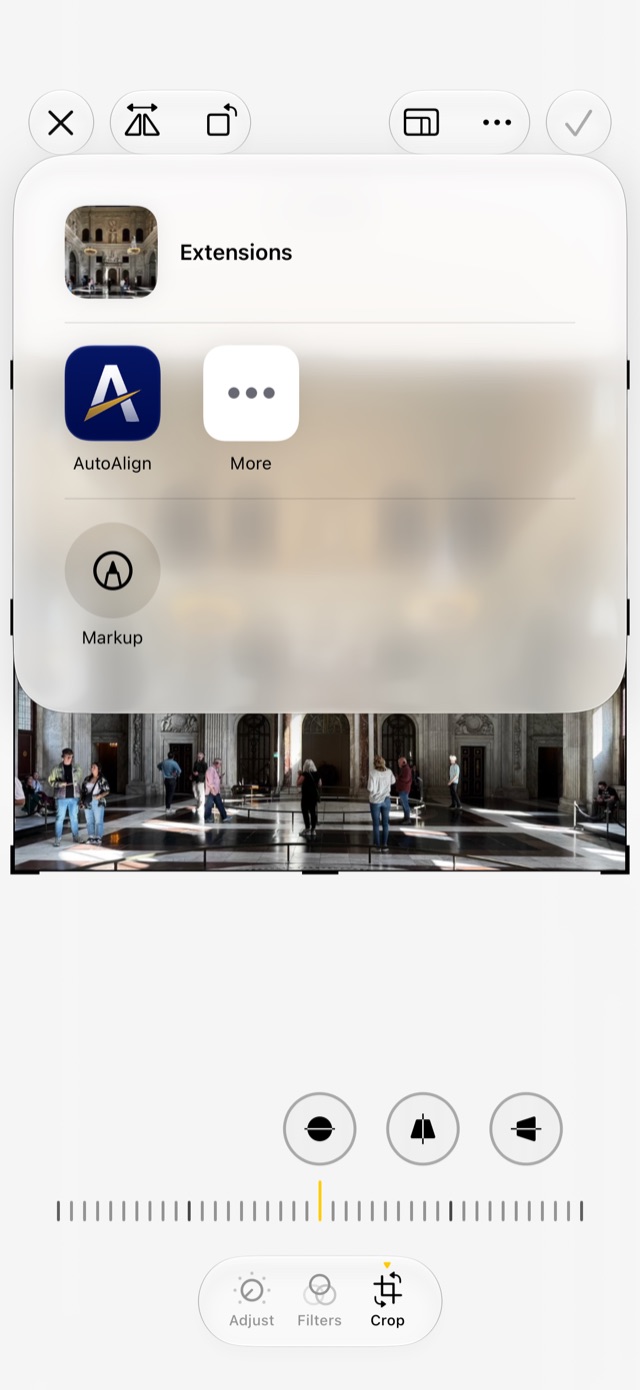
- In the Photos app, open a photo and tap Edit.
- Tap the ••• button and choose AutoAlign.
- The photo straightens. Use the same tools as in the app, then tap Done.
No exporting and no duplicates. To undo, open the photo in Photos, tap Edit, then Revert.
Scan a document.
Receipts, letters, cards and slides. One shot per page.
- On the home screen tap Scan.
- Point at the page. It's outlined when found. Hold steady and Auto takes the shot, or tap the shutter.
- When it says Ready for the next page, move to the next one. Tap Done after the last.
- Check the pages in Review. Each is already cropped and straightened.
- The document gets a title and a category, with the date and place it was scanned.
Already have the page in Photos or Files? Open it with Straighten or Files on the home screen and tap Keep to file it in Documents. Inside a document, + adds more pages.
Find and share documents.
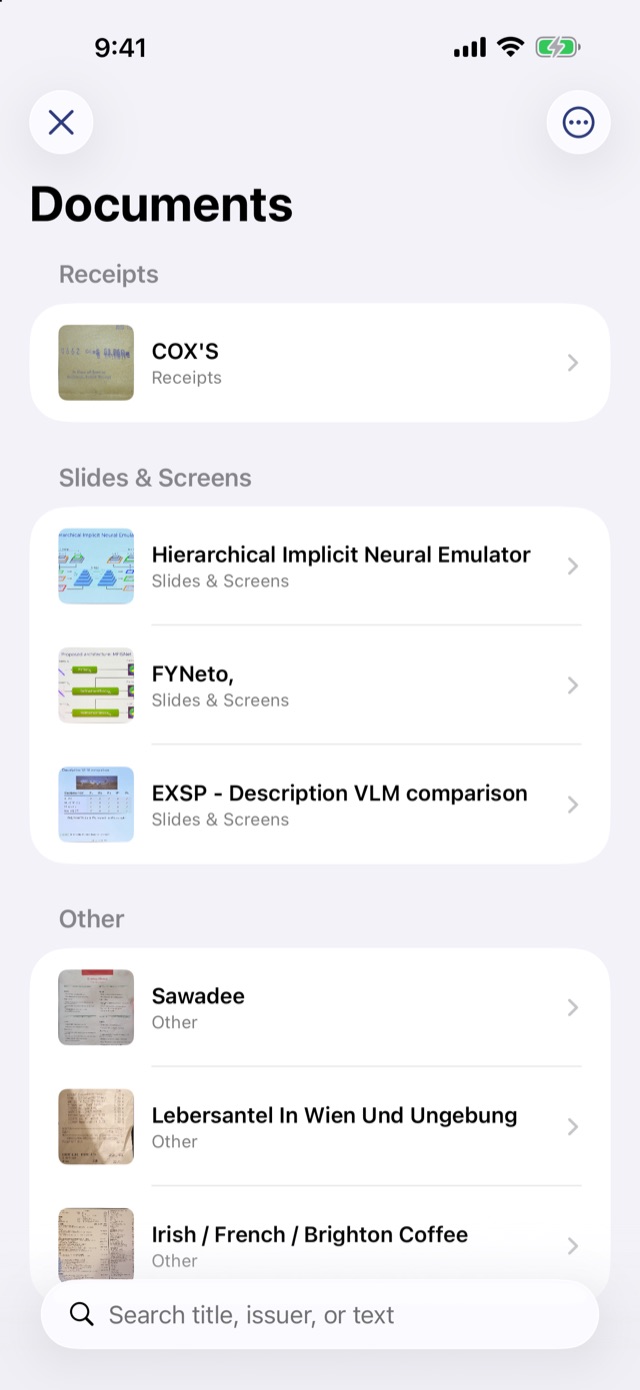
- Your documents sit under Documents on the home screen. Tap one to open it.
- Use Search title, issuer, or text to find any word on a page, who sent it, or where you scanned it.
- Tap New Category to add your own, and change a document's Category from its screen.
- Tap the share button: Export as PDF, Share pages as images, or Save to Photos.
Ask about your documents.
Apple Intelligence answers on your iPhone and shows the document the answer came from. Nothing is sent anywhere. Experimental: one question at a time works best.
- Tap Ask next to your documents on the home screen.
- Type a question in your own words, or tap a suggestion like Summarize my latest document.
- AutoAlign looks through your documents and reads the right one. This takes a few seconds.
- The answer comes with its document. Tap it to open the page.
Needs an iPhone that supports Apple Intelligence, like iPhone 15 Pro or later, on iOS 26 with Apple Intelligence on. The first clip is sped up. How it works ›
When something's off.
The photo didn't straighten.
AutoAlign needs clear straight lines, like walls, windows or a page edge. When it says automatic correction was not possible, use Manual Fix under Perspective and drag the four corners yourself.
The straightened photo looks stretched.
Try Vertical only under Straighten, which fixes only the leaning walls. Or use Manual Fix on something you know is square.
I can't save to Photos.
AutoAlign needs permission to add photos. Open the iPhone's Settings › Apps › AutoAlign › Photos and allow access. Straightening works either way, saving doesn't.
I don't see the Ask button.
Ask Documents shows only on devices with Apple Intelligence (iPhone 15 Pro or later, iOS 26 or later), with Apple Intelligence turned on in Settings, and isn't available when the app is in Arabic.
Ask is slow the first time.
The first time, AutoAlign downloads its on-device search model and reads your pages. After that, answers take a few seconds.
Ask forgot what I asked before.
The on-device model has a small memory, so long chains of follow-ups can lose track. Ask the full question again, or start a new chat from Chats.
Still stuck, or have an idea? Contact us, we read every message.